Main:
Main: 
Is Your Team Losing the Day... One Spinning Wheel at a Time?
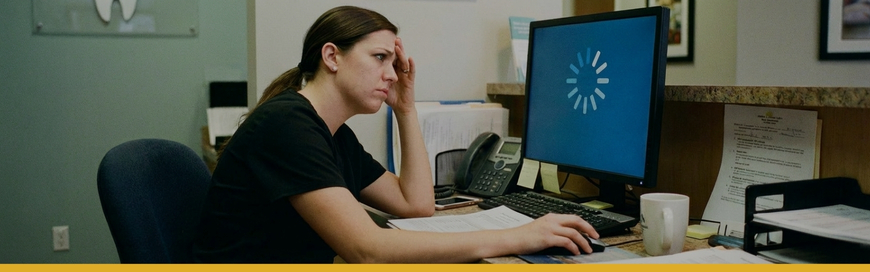
It's 8:47 a.m. Your hygienist is trying to pull up a patient's chart. The front desk is loading the schedule. A doctor is logging into the practice management software. And every computer in the office is... buffering.
The patient in chair two can hear the sighing. Your front desk is offering a tight smile and a "just one second." Your team is already frustrated before the day really gets started.
Sound familiar?
Slow computers in a dental office aren't just an inconvenience. They eat into chair time. They fray staff morale. They chip away at the patient experience you've worked so hard to build. And in many cases, the root cause is completely fixable... once you know what you're actually dealing with.
Let's unpack the top five reasons dental office computers slow down, and what you can do to get your practice running the way it should.
#1: Wrong Computer for the Job
Not all computers are created equal. A workstation used strictly for scheduling or billing has very different demands than one running 3D cone beam imaging software, CAD/CAM design tools, or high-resolution intraoral cameras.
When you put dental imaging software or other large applications on a workstation that was designed for basic office tasks, you're essentially asking a compact sedan to tow a large RV. It might move... but not without protest.
What you're looking for in imaging workstations:
- A dedicated graphics card (GPU) not just integrated graphics
- 16–32 GB of RAM minimum for imaging-intensive tasks
- A fast solid-state drive (SSD) rather than an older spinning hard drive
- An i5 or better processor (CPU) to handle parallel tasks
If you haven't evaluated whether your workstations are spec'd for the software running on them, that's the first place to look.
Want to know exactly which computers are best suited for your dental practice? Read our full breakdown here.
#2: Computers are Never Properly Shutdown (or Restarted)
Most dental teams put their computers to sleep at the end of the day, or simply leave them in "hibernate" mode overnight.
But here's the catch... computers need a full restart to clear memory (RAM), install pending updates, flush system caches, and close out background processes that have been quietly accumulating all day. Without regular restarts, your system is like the breakroom refrigerator that never gets cleared out — everyone's leftovers keep piling up, and eventually there's no room for anything new. Performance degrades. Things stop working the way they should. And nobody wants to be the one to deal with it.
A simple habit that makes a real difference:
- Restart (not just sleep or shut down) workstations at the end of each day
- Allow Windows Update to complete during these overnight restarts
- Encourage staff to log off properly... not just close the lid or walk away
A multi-location practice, that reached out to us inquiring about IT services for their dental practice, mentioned their front desk computers were extremely slow and would take several minutes to load in the morning. When we looked behind-the-scenes... we found that the computers had gone weeks without a proper restart because the team assumed overnight sleep mode was sufficient. Once a structured end-of-day restart protocol was put in place, staff reported noticeably faster performance within the first week... no new hardware required.
It's one of the lowest-effort, highest-impact changes a practice can make. And yet, it's almost always overlooked.
#3: Outdated Operating System
If your computers are still running Windows 10 — or worse, an older version — this deserves your immediate attention.
Older operating systems are no longer optimized for today’s — or better yet — tomorrow’s software. Developers of practice management platforms and imaging applications are building and updating their software for current operating systems. When there's a mismatch, you get sluggishness, compatibility issues, and error messages that interrupt workflows at the worst possible times.
And then there's the security side of the equation.
In 2025, there were over 3,000 vulnerabilities reported across versions of Windows 10. (1) With Microsoft officially ending mainstream support for Windows 10 (no more security patches) in October 2025, this leaves practices that haven't upgraded exposed to vulnerabilities that bad actors are actively exploiting. For a dental practice handling protected health information (PHI), that's not just a performance risk. That's a HIPAA compliance risk.
Windows 11 isn't just more secure; it's also more efficient. It handles memory management better, boots faster, and plays nicely with dental software. If your team is running on an outdated OS and wondering why things feel sluggish, the operating system itself may be part of the problem.
What to do:
- Audit which OS version each workstation is running
- Confirm hardware compatibility before upgrading to Windows 11 (some older machines may not qualify and may need to be upgraded to Windows 10 ESU)
- Plan OS upgrades as part of a broader technology refresh cycle
Not sure where your practice stands? That's exactly the kind of assessment a dental-focused IT partner can run for you... quickly and without disrupting your day.
#4: Practice Management or Imaging Software Version
So, your practice is running Dentrix, Eaglesoft, or another platform... and the software hasn't been updated in a year (or more). The team figures, "If it's working, why fix it?"
Well, "working" and "performing well" are two very different things.
Software developers release updates for a reason: to fix bugs, improve performance, patch security vulnerabilities, and add features that enhance usability. Skipping updates means your team is working on a version that may have known issues the developer has already resolved (issues that directly affect how fast the software loads, processes images, and syncs data).
Beyond that, practice management and imaging software are increasingly integrated with other systems such as patient communication platforms, billing tools, digital sensors and cameras. When one piece of the stack falls behind on updates, it can create friction across the entire workflow. That friction shows up as slowness, crashes, or sync failures.
Signs your software may be overdue for an update:
- Loading screens that take significantly longer than they used to
- Frequent error messages or unexpected crashes
- Imaging software that struggles to communicate with hardware
- Staff workarounds that have become "just the way we do it"
A best practice is to designate someone — or better yet, an IT partner — to monitor software versioning and ensure updates are applied on a scheduled basis, not reactively when something breaks.
#5: Process Overload
Picture your busiest operatory on a Monday morning. Two applications open. A browser with five tabs. An imaging program in the background. A pending Windows update quietly chewing through RAM. An antivirus scan that decided 9 a.m. was the perfect time to run.
Your computer is being asked to do too many things at once... and it's struggling.
This is what IT professionals call resource contention: multiple processes competing for the same limited CPU, RAM, and disk input/output capacity (as we mentioned in Reason #1). It's one of the most common — and most underestimated — causes of slowness in dental offices, because it often isn't any single program that's the problem. It's the combination.
Common culprits:
- Background antivirus or security scans scheduled during business hours
- Automatic software updates running mid-day
- Imaging programs left open and idle (still consuming memory)
- Browser tabs (10 open tabs in Google Chrome consumes an average 1 GB of your computer’s RAM) that load and reload content continuously
- Syncing applications (backups, cloud tools) running during peak hours
The good news? A lot of this is configurable. Antivirus scans and backups can be scheduled for after hours. Startup programs can be audited and trimmed. Staff can be trained on simple habits — like closing applications they're not actively using — that collectively make a meaningful difference.
What Slow Computers are Really Costing Your Practice
Every minute your team spends waiting on a slow computer is a minute they're not spending on patients. It's friction at the front desk during check-in. It's a hygienist waiting on images while a patient sits in the chair. It's a billing coordinator who's behind before noon.
Multiply those small delays across a full schedule, five days a week... and the cumulative impact on productivity, staff satisfaction, and patient experience is significant.
The practices that run smoothly aren't the ones with the most expensive technology. They're the ones with the right technology, properly maintained, and supported by a team that understands how dental offices work.
3 Steps to Speed Up Your Dental Office Computers
You don't have to tackle this alone, and you don't have to guess.
Step 1: Do a quick internal audit — how old are your workstations? When did you last update your OS and practice software? Are computers restarting nightly?
Step 2: Read our guide on which computers are best for dental practices to see whether your current hardware is built for the work you're asking it to do.
Step 3: Talk to a dental IT specialist who can assess your environment, identify what's slowing you down, and give you a clear plan.
That's what Pact-One does. We've been supporting dental practices since 2003, and we understand the unique demands of your environment: the software, imaging, compliance requirements, and the reality that downtime isn't just an IT problem — it's a patient care problem.
Need help auditing your technology setup? We'd love to help. Contact us today!
Sources
- “Top 50 Products by Total Number of “Distinct” Vulnerabilities in 2025.” SecurityScorecard, https://www.cvedetails.com/top-50-products.php?year=2025. Accessed 17 April 2026.
- Silver, Nick. “Which Browser Uses the Least Memory in 2025.” Cloudzy, 30 Jul. 2025, https://cloudzy.com/blog/which-browsers-use-the-least-memory/. Accessed 17 April 2026.
Dental IT. Remove the Burden. Embrace the Use.
Quality patient care – it's ultimately why you became a dental professional. But, some business operations can get in the way (such as pesky computer issues or lack of IT support). That’s where Pact-One Solutions can help! Our passion lies in supplying reliable, responsive dental IT support and security that practices can count on.
Whether you’re looking for dental IT services for your startup or searching for more responsive dental IT support – our team of dental IT specialists have you covered. With team members throughout the United States, we offer nationwide support to dental practices of all sizes, specialties, and stages of growth. Our all-inclusive suite of dental IT services ensures your data is secure, accessible, and protected.
Don't let technology challenges hinder your ability to deliver exceptional dental care. Contact us at info@pact-one.com or 866-722-8663 to join over 3,000 dental professionals thriving with the support of a dedicated dental IT team.