
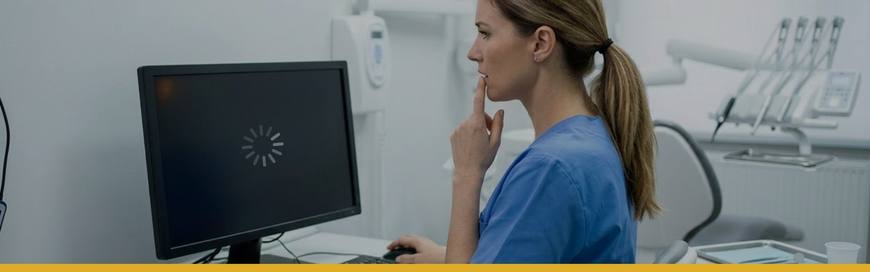
When a computer stops working in a dental office, it rarely stays “just a computer issue” for long.
One front desk workstation goes down, and suddenly check-ins slow down. A provider cannot access charts chairside. Imaging stalls. Billing gets delayed. The whole team feels the pressure. In a busy practice, even one failed computer can ripple through the day and affect patient experience, productivity, and revenue.
At Pact-One, we’ve spent more than two decades helping dental practices navigate the pressure of technology problems, from single-workstation failures to office-wide outages.
If your dental office computer is not working, this guide will walk you through what to do first, what not to do, when the issue may be bigger than one device, and how to reduce the risk of it happening again.
Your 3-Step Response Plan
If a computer in your dental office stops working, start here:
- Confirm the scope: Figure out whether the issue affects one workstation or multiple systems.
- Protect data and operations: Avoid risky fixes, document errors, and preserve access to critical systems if you can.
- Escalate quickly when needed: If patient care, imaging, scheduling, billing, or multiple users are affected, contact specialized dental IT support right away.
This simple pause can save hours of confusion later.
First Steps to Take When a Dental Office Computer Stops Working
When something goes down, the goal is not to guess. It’s to narrow the problem safely.
Check Power, Monitor, and Cable Connections
Start with the basics.
Make sure the computer is plugged in and powered on. Confirm the monitor is on too. Check all cables between the computer, monitor, docking station, keyboard, and power source (is the surge protector switched off?).
It sounds simple, but loose cables, switched-off monitors, failing power strips, and dock issues are common causes of what looks like a dead workstation.
Determine Whether It's One Computer or a Larger Outage
This is one of the most important questions to answer. Ask:
- Is only one workstation affected?
- Are multiple computers having the same problem?
- Can anyone else access the server, shared drives, or cloud systems?
- Are phones, printers, scanners, or imaging devices also having trouble?
- Can team members still log into practice management software?
If the issue is isolated to one device, you may be dealing with hardware failure, a user profile issue, or a software problem. If several systems are affected, the issue may involve the network, server, internet connection, or cybersecurity.
Test Access to the Systems Your Team Relies on Most
If the computer turns on but staff still can't work, test the platforms that matter most:
- Practice management software
- Digital imaging software
- Internet access
- Shared drives or cloud folders
- Patient communication tools
- Printers and scanners
This helps you tell the difference between a workstation problem and a system-wide issue hiding behind it.
For example, a front desk computer may appear to be “not working” when the real issue is that the network is down and no one can reach shared systems.
Restart Carefully
A restart can help with temporary glitches, but it should be done with care. Before restarting:
- Save work if possible
- Write down or photograph any error messages (make sure PHI is not captured in the photograph)
- Note whether the system is frozen, slow, or showing unusual warnings
- Avoid repeated hard shutdowns unless the device is completely unresponsive
If you see signs of ransomware, account lockouts, failed updates, encryption messages, or unusual pop-ups, stop there and call IT support before taking further action. (3)
Document What You're Seeing
This step helps more than most people realize. Take note of:
- The exact error message
- The time the issue started
- Which users or devices are affected
- Any recent changes, including updates, new hardware, login changes, or suspicious emails
- Whether the problem is recurring
Photos are helpful. Specific wording is even better. The more clearly you can describe what happened, the faster your dental office computer troubleshooting process can move.
Is It One Computer or a Bigger IT Problem?
When you’re in the moment, it helps to sort symptoms quickly.
| If this is happening | It may point to |
|---|---|
| One computer will not power on | Local hardware or power issue |
| Computer turns on but will not open software | Application error, user profile issue, or failed update |
| Multiple workstations can't access charts or files | Network, server, or cloud issue |
| Strange pop-ups, locked files, or warning messages | Possible malware or ransomware |
| Systems across the office feel slow | Network congestion, server trouble, or aging infrastructure |
This is why early triage matters. The question is not only “Is the computer on?” It’s “How far does this issue reach?”
If your office doesn’t already have a downtime response process, this is also a good time to create one. Pact-One recently published a practical guide to building a dental practice business continuity plan so your team knows what to do when technology interrupts the day.
Common Reasons a Computer Stops Working in a Dental Practice
There are several reasons a dental office computer may stop working. Some are minor and fixable. Others point to bigger technology risks.
Hardware Failure
Hard drives wear out. Power supplies fail. Memory goes bad. Fans stop cooling properly. Aging components eventually catch up with every workstation.
In many dental practices, computers are used all day, every day, and often stay in service longer than they should. If the same workstation is repeatedly crashing, freezing, or slowing down, it may be time to ask whether you should repair or replace dental office computers rather than keep paying for disruption.
As Adam Kunkel, Client Success Manager at Pact-One, puts it: "Choosing between repairing and replacing computers should be based on a thorough assessment of both current performance and future needs. Always consider the long-term benefits of upgrading your technology."
This is especially true in a dental practice, where “making it work for a little longer” often costs more in lost time, frustration, and patient disruption than people expect.
Failed Updates or Software Conflicts
Sometimes the computer itself is fine, but the operating system, antivirus, or a software update creates a conflict. This can affect:
- Practice management software
- Imaging applications
- Printer connections
- Login behavior
- Performance after reboot
Dental environments are especially sensitive to this because so many systems depend on multi-vendor compatibility. One update that looks minor on paper can interrupt a workflow your team relies on every hour.
Pro Tip: If a practice management software, such as Dentrix, is requiring an update, you may want to check with your other applications (imaging, communication, etc.) to ensure they won’t be affected by the update. For example, at Pact-One we conduct a verification of recent software versions before completing any updates for our clients. This is to ensure that all other integrated applications won’t be affected by the update.
Network, Server, or Internet Issues
A workstation may look broken when the real issue is the network behind it.
If staff cannot reach shared applications, cloud platforms, imaging databases, or central file storage, the problem may have nothing to do with the PC itself. That’s one reason surface-level troubleshooting can miss the bigger picture.
Malware or Ransomware
If the device suddenly locks up, behaves strangely, shows unusual warnings, or files become inaccessible, malware may be involved.
Dental practices are attractive targets because they depend on constant availability and manage protected patient data. Guidance from the Cybersecurity and Infrastructure Security Agency (CISA), consistently emphasizes basics that matter here: isolate suspicious systems quickly, avoid unsafe workarounds, maintain protected backups, and limit the spread of an incident. (3)
The U.S. Department of Health & Human Services (HHS) also reinforces the importance of safeguarding electronic protected health information (ePHI) through contingency planning, access controls, and secure system management. (1)
If ransomware is even a possibility, do not experiment. Escalate quickly and protect the rest of the environment. For more on that risk, see Pact-One’s guide to ransomware and HIPAA compliance in dental practices.
Aging or Unsupported Systems
Outdated computers and unsupported operating systems create two problems at once: they’re more likely to fail, and they’re less likely to receive current vendor support or security updates.
That means recurring downtime, compatibility issues with dental software, and increased exposure to security risks.
If your practice is seeing repeated workstation issues, it may be time for a more strategic dental practice hardware refresh plan instead of another temporary patch.
What Not to Do During a Dental IT Problem
When the day is already off track, it’s tempting to try whatever might get things moving again. But this is where small mistakes can become bigger outages.
Don't Ignore the Warning Signs
Slow systems. Frequent freezes. Random restarts. Repeated login failures. Applications crashing at the same workstation.
Those are not normal annoyances. They are often early warnings that your environment needs attention.
If your office has been dealing with recurring issues, Pact-One’s dental IT health checklist is a good next read.
Don't Install Random Fixes from the Internet
Online forums can be helpful in the wrong setting. A busy dental office with patient data is not that setting.
Avoid downloading unknown tools, changing system settings without guidance, or applying unverified fixes that could create new security, performance, or compatibility problems.
Don't Let Staff Work Around Secuirty Controls
When teams are under pressure, shortcuts start to look practical.
They usually aren’t. Avoid:
- Sharing passwords
- Disabling antivirus
- Using personal email for patient information
- Texting protected information from personal devices
- Bypassing secure workflows just to “keep things moving”
Those decisions can create serious cybersecurity and HIPAA problems long after the original outage is resolved. (1)
Don't Wait Too Long to Call for Help
If the issue affects imaging, scheduling, chart access, billing, phones, multiple users, or patient data, the safest move is to involve specialized dental IT support early.
Fast escalation often means less downtime, less confusion, and less risk.
When to Contact Dental IT Support Immediately
Some issues can wait a few minutes. These can't.
Contact dental IT support right away if:
- More than one workstation is affected
- Staff cannot access practice management or imaging software
- The server, internet, or office network appears to be down
- You see signs of malware, ransomware, or account compromise
- The same computer keeps failing repeatedly
- The team is unsure how to proceed safely
- Patient flow, billing, scheduling, or communication is already being affected
Here’s the thing: in a dental office, timing matters. Waiting too long can turn a contained issue into a full-day disruption, especially if the problem involves security compromise or an active ransomware event. (1)(2)
And the stakes are not just operational. They’re human too. Patients notice when the front desk is scrambling. Teams feel it when they can’t move confidently through the day. Providers lose momentum when technology keeps getting in the way of care.
That’s why a clear escalation path matters so much.
How to Reduce Risk of Future Computer Problems in Your Dental Practice
Urgent issues are frustrating. They're also revealing. They often show you where your IT environment has become fragile.
Here are smart ways to lower the risk of future downtime.
Replace Outdated Workstations on a Schedule
Old computers cost more than their repair bill suggests. They slow people down, fail more often, and create hidden drag on the practice.
A planned refresh cycle is far less disruptive than waiting for critical hardware to fail in the middle of a full schedule.
If your office is weighing upgrades this year, Pact-One’s guide to replacing technology in your dental practice can help frame the decision.
Keep Systems Patched and Monitored
Updates should be tested, managed, and monitored with your dental software environment in mind.
Done well, patching improves stability and security. Done carelessly, it can create avoidable downtime.
Train Staff on Phishing and Security Basics
Many security incidents begin with a rushed click, a fake login page, or an email that looked legitimate enough in the moment.
Regular staff training helps reduce those risks and gives your team more confidence when something seems off. (3)
Here are a few additional resources that may help your dental team:
- How to Train Your Dental Team to Recognize Phishing Emails
- Protect Your Dental Practice from Email Scams: Stop BEC Attacks Before They Cost You
- 7 Cybersecurity Best Practices Every Dental Team Member Should Know
Review Backup and Recovery Readiness
Backups are not helpful just because they exist. You also need to know:
- What is being backed up
- How often it is backed up
- Whether backups are protected
- How quickly data and systems can actually be restored
This is not just a best practice. It aligns with the kind of contingency planning healthcare organizations are expected to take seriously. (1) Every dental practice should understand not only whether backups exist, but whether recovery has been tested in a way the team can trust.
That’s why every practice should review its continuity plan and recovery process, not just assume it will work. Pact-One’s backup and disaster recovery services page is a helpful place to start.
Work with a Dental IT Partner Instead of Reacting Issue by Issue
Break-fix support may solve a symptom. It rarely solves the system behind it.
The more resilient path is working with a partner, such as Pact-One Solutions, who understands your environment, tracks risk over time, and helps you move from reactive troubleshooting to a more stable, secure, growth-ready strategy.
FAQ: Dental Office Computer Problems
Have questions about computer issues in your dental practice? Here are some common questions we get asked! Click the question to see the answer below.
Don't Let One Computer Problem Shut Down Your Practice
A computer not working in your dental office can feel urgent because it is urgent.
Technology issues in dentistry do not stay tucked inside the server closet. They show up at the front desk, in the operatory, in the schedule, in the patient experience, and eventually in revenue if they’re not handled quickly and correctly.
The right response makes a real difference.
When your team knows how to assess the issue, protect data, document symptoms, and escalate early, recovery gets easier. And when your practice has the right IT partner in place, downtime becomes less frequent, less disruptive, and far less stressful.
Pact-One helps dental practices across the U.S. build more reliable, secure, and scalable IT environments, from urgent troubleshooting to long-term planning.
Want to prevent the next outage? Schedule a Practice IT Analysis and identify risks before downtime impacts your practice.
Sources
- “Security Rule Guidance Materials.” U.S. Department of Health & Human Services, https://www.hhs.gov/hipaa/for-professionals/security/guidance/index.html. Accessed 6 Mar. 2026.
- "Stop Ransomware.” Cybersecurity and Infrastructure Security Agency, https://www.cisa.gov/stopransomware. Accessed 6 Mar. 2026.
- “Windows Lifecycle FAQ.” Microsoft, https://learn.microsoft.com/en-us/lifecycle/faq/windows. Accessed 6 Mar. 2026.
Dental IT. Remove the Burden. Embrace the Use.
Quality patient care – it's ultimately why you became a dental professional. But, some business operations can get in the way (such as pesky computer issues or lack of IT support). That’s where Pact-One Solutions can help! Our passion lies in supplying reliable, responsive dental IT support and security that practices can count on.
Whether you’re looking for dental IT services for your startup or searching for more responsive dental IT support – our team of dental IT specialists have you covered. With team members throughout the United States, we offer nationwide support to dental practices of all sizes, specialties, and stages of growth. Our wide range of dental IT services ensure your data is secure, accessible, and protected.
Don't let technology challenges hinder your ability to deliver exceptional dental care. Contact us at info@pact-one.com or 866-722-8663 to join over 3,000 dental professionals thriving with the support of a dedicated dental IT team.