


Technology rarely “blows up” in a dental office out of nowhere.
It whispers first.
A front desk computer that hesitates while a patient is standing right there. An imaging workstation that freezes “only sometimes.” A server that’s been loyal for years…until it becomes the reason the whole day slows down.
If you run a dental practice with cloud tools and/or an on‑prem server, you don’t need more gadgets. You need a hardware refresh plan—a calm, predictable way to keep computers, the server, and network hardware reliable, supported, and secure.
That’s what hardware/device lifecycle management is.
Why Hardware Refresh Planning Matters in Dental
Dental workflows are real-time, patient-facing, and stacked. Your hardware touches:
- Scheduling, charting, insurance, payments
- Imaging and scanner workflows
- Multi-monitor operatories
- Patient forms + communication tools
- Vendor portals + cloud apps
- And (for many practices) a server still doing important behind-the-scenes work
When hardware is aging out, the cost isn’t just “slow computers.” It shows up as:
- Lost chair time (because the team is waiting on screens)
- Rushed staff (because the day starts behind)
- Frustrated patients (because the front desk can’t move fast)
- Increased security risk (because older devices drift out of support)
And the sneakiest part? Teams normalize it. “That computer is just like that.”
If you want a deeper look at the ripple effects (time, revenue, and risk), this is worth reading alongside: outdated dental practice technology—what it’s costing you.
What We Mean by a "Hardware Refresh Plan"
A hardware refresh plan (a.k.a. Hardware Lifecycle Management) is a schedule and process for:
- Knowing what you have (and what it supports)
- Maintaining it consistently (updates, monitoring, security)
- Replacing it before it fails (on purpose, not in panic)
- Retiring it securely (so patient data doesn’t linger)
This is how practices avoid “surprise” downtime that wasn’t actually a surprise.
Myth that Costs Dental Practices the Most
A device can boot and still be a liability.
Common “it’s fine” situations in dental:
- PCs are out of warranty, so repairs are slower and more expensive
- Devices are out of support, so critical security updates stop
- A firewall is still routing traffic… but it can’t be patched anymore
- An imaging PC is underpowered and quietly stealing chair time
- Old devices get stored “just in case” (with data still on them)
If you’re constantly debating whether to keep limping along or finally upgrade, you’ll like this practical breakdown: dental office computers: repair vs. replace.
A refresh plan turns that uncertainty into a system.
When to Replace What: Dental-Friendly Timelines
Use these as planning ranges, not rigid rules. Your workflow, imaging load, and software requirements should decide the final schedule.
1. Dental Office Computers (Workstations)
Replace every 4–5 years
Replace sooner (often 3–4 years) if the workstation:
- Runs imaging software or scan workflows
- Drives multiple large monitors all day
- Regularly lags, freezes, or fails updates
Prioritize high-impact roles: front desk, insurance/billing, imaging stations, and any “hub” computer used all day.
If you’re wondering what specs and models tend to work best in real dental environments, reference: which computers are best for your dental practice.
2. Laptops (Owner/Doctor/Manager)
Replace every 3–4 years
Laptop lifecycles are often shorter because batteries degrade and evolving security tools demand more performance.
3. Imaging/ ”SpecialDuty” Workstations
Replace every 3–4 years
These are the first machines you feel when they’re underpowered.
4. Server (if you have one onsite)
Replace every 5–7 years, but don’t rely on age alone. Replace/update based on:
- Warranty/support status
- Drive health + storage capacity
- Performance (slow logins, slow file access, timeouts)
- Backup and disaster recovery readiness
- Compatibility with your current software stack
If your practice is partly cloud-based, your server may still support file shares, authentication/logins, imaging storage, or integrations. Treat it like infrastructure, not furniture.
If you want a quick “do we have a server problem?” gut-check, here are the red flags that your server is failing.
5. Network Hardware (firewall, switches, Wi-Fi)
Replace every 4–6 years (sometimes sooner)
This category gets overlooked because it’s “out of sight,” but it’s often the single biggest driver of cloud performance.
- Firewall: replace earlier if it’s end-of-support. A firewall that can’t be patched is a security risk, full stop.
- Wi‑Fi access points: replace when coverage/density can’t keep up (operatories, waiting room, guest network, VoIP).
- Switches: replace if capacity is tight or you’re seeing instability, port failures, or outdated power/PoE needs.
Quick rule: If you can’t confidently patch it, it’s time to plan its replacement. For a deeper security-focused explanation, see the risks of end-of-life (EOL) technology in your dental practice.
Industry Update: Why "Waiting Another Year" May Cost More Than You Think
One practical reason to plan refresh projects earlier (even if you don’t install everything tomorrow): the hardware supply chain is shifting.
Across the industry, manufacturers are putting more capacity toward AI and data center demand, which can tighten availability of certain workstation/server components—especially memory, storage, and graphics-related parts. The real-world result many businesses are seeing is simple: higher pricing and occasional lead-time surprises on builds that used to be straightforward.
You don’t need to panic-buy. But you do want a plan... because planning early gives you options:
- More time to choose compatible systems (especially for imaging)
- More time to schedule installs around patient care
- More ability to lock in pricing/availability before the next increase or shortage
Cloud + Server: Two Things Practices Underestimate
Your Network is Your Lifeline
Even “cloud-based” dental offices still live and die by stable Wi‑Fi, a supported firewall, clean switching/cabling, and reliable internet (ideally with a backup option).
Cloud doesn’t remove your need for infrastructure. It makes infrastructure more important.
Your Server is a Single Point of Interruption
If the server is still part of your workflow, you want it:
- Monitored
- Supported
- Backed up with tested restores (not just “the backup says it ran”)
- On a replacement timeline (not a “we’ll see how long it lasts” timeline)
Four Phases of Hardware Lifecycle Management for Your Dental Practice
Phase 1: Inventory (visibility)
Maintain a living list that includes:
- Device name/location (Front Desk 1, Op 3, Imaging, etc.)
- Role (front desk, ops, admin, imaging, doctor)
- Purchase date + warranty end date
- Operating system version
- Known issues (slow boot, disconnects, failing battery)
Phase 2: Maintain (consistency)
Keep maintenance routine:
- OS and application updates
- Security tooling coverage (anti-malware/EDR, MDR, DNS filtering, etc.)
- Monitoring for drive health, storage, performance
- Standard configuration baselines
If you want to reinforce the “why” behind this (and help your team buy into it), here’s a complementary read: the benefits of regular computer maintenance.
Phase 3: Refresh (planned replacement)
A healthy approach for a dental office is replacing about 20–30% of endpoints per year—instead of having one brutal “everything is dying” year.
If you’re trying to shape this into a real, schedulable initiative, it can help to frame it like other IT projects for dental offices: scope, timeline, disruption-minimizing rollout, and clear success criteria.
Phase 4: Retire (secure offboarding)
Retirement should include:
- Secure wipe (not just deleting files)
- Removing accounts and access (email profiles, remote tools, VPN)
- Documenting disposition
- Recycling through a trusted channel
Old devices in storage are a common source of unmanaged risk. For the “do this the right way” version, reference: e-waste and disposing of old computer equipment.
What Hardware Lifecycle Management Looks Like
If you’re reading this thinking, “Okay, yes… but I’m already juggling staff, vendors, patients, and the schedule,” you’re not alone. Most practices don’t need more responsibilities; they need fewer surprises.
That’s why Pact-One includes Hardware Lifecycle Management for clients.
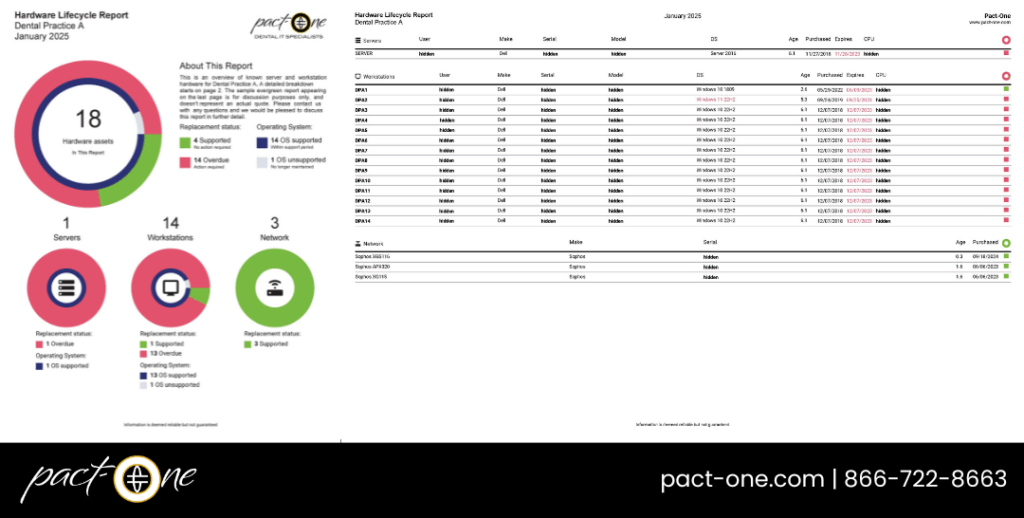
This is an example of a Hardware Lifecycle Management report provided to our clients here at Pact-One.
We help you:
- Track what you have (inventory, age, warranty status, and what each device supports)
- Standardize smartly (so replacements aren’t a guessing game)
- Plan refresh cycles (so you replace a predictable slice each year, not everything during a meltdown)
- Retire devices securely (so patient data doesn’t linger on an old drive in a closet)
It’s not about replacing hardware “just because.” It’s about keeping your practice supported, secure, and future-ready... without your team carrying the mental load.
Sample 12-Month Hardware Refresh Roadmap
Months 1–2: Get visibility
- Update inventory with ages + warranty dates
- Identify Tier 1 hardware: front desk PCs, imaging PCs, server, firewall/Wi‑Fi
- Flag anything out of support/out of warranty
Months 3–4: Fix the foundation (network)
- Review firewall support status and performance
- Address Wi‑Fi dead zones and aging access points
- Check switches/cabling for bottlenecks and instability
- Review internet reliability and backup options
Months 5–7: Replace high-impact computers
- Imaging workstations first
- Front desk workstations second
- Then any device that’s become a daily timewaster
Month 8: Server checkpoint
- Confirm warranty/support and storage health
- Verify backups and run a test restore
- If the server is aging out, schedule modernization/replacement proactively
Months 9–11: Replace remaining older endpoints
- Prioritize billing/insurance/scheduling devices
- Standardize models/specs as you go to reduce future complexity
Month 12: Secure retirement + next-year planning
- Confirm all retired devices were wiped and documented
- Set next year’s refresh list (another 20–30%)
- Pre-approve budget ranges so decisions aren’t made under pressure
If you’re working toward a near-term deadline (Operating System changes, vendor upgrades, growth plans), you may also want this planning-oriented guide: replacing tech in your dental practice this year.
Quick Red Flags
If these red flags are true, you’re due for a refresh plan:
- You don’t know how old most devices are
- Warranty coverage is inconsistent
- You have “that one computer” everyone avoids
- Wi‑Fi is unpredictable during busy times
- Replacements happen only when something breaks
- You’re unsure how devices are wiped and disposed of
Ready to Plan Ahead (and avoid rushed purchases)? Contact Us.
If you’ve been delaying workstation, server, imaging, or network purchases, you’re not alone. But with pricing and availability more unpredictable than they used to be, waiting can quietly reduce your options—and force decisions during the worst possible moment: when something breaks mid-week.
Pact-One can help you get ahead by:
- Evaluating your practice’s needs by role (front desk vs. clinical vs. imaging)
- Identifying outdated systems to retire (and simplifying what replaces them)
- Reviewing practical options based on performance, warranty, and compatibility
- Building a clear refresh strategy you can budget for
- Implementing upgrades in a low-impact way that keeps patient care first
Contact us and we’ll help you map a refresh plan that fits your practice, calendar, and budget—without panic-buying.
FAQ: Hardware Refresh Planning for Dental Practices
Have questions about computer, server, or network hardware replacements in your dental practice? Here are some of the most common questions that we get asked! Click the question to see the answer below.
- Slow boot/login and frequent freezing
- Updates failing or taking forever
- Random reboots/blue screens
- Constant “this computer is weird” complaints from multiple users
- The device is out of warranty or struggles with evolving security tools
If the PC is costing time every day and slowly bleeding money with band-aid fixes, you’re already paying for it.
- Warranty/support status
- Drive health and capacity
- Performance and software compatibility
- Backup + disaster recovery readiness (including test restores)
If your server is out of support, that’s a “plan now” moment—not a “sometime this year” moment.
- It hits end of support/end of life
- It can’t keep up with your internet speeds or security needs
- VPN/VoIP/cloud performance becomes inconsistent
- Firmware updates are no longer available
Even if “the internet works,” an unsupported firewall is a risk you don’t want to normalize.
Dental IT. Remove the Burden. Embrace the Use.
Quality patient care – it's ultimately why you became a dental professional. But, some business operations can get in the way (such as pesky computer issues or lack of IT support). That’s where Pact-One Solutions can help! Our passion lies in supplying reliable, responsive dental IT support and security that practices can count on.
Whether you’re looking for dental IT services for your startup or searching for more responsive dental IT support – our team of dental IT specialists have you covered. With team members throughout the United States, we offer nationwide support to dental practices of all sizes, specialties, and stages of growth. Our wide range of dental IT services ensure your data is secure, accessible, and protected.
Don't let technology challenges hinder your ability to deliver exceptional dental care. Contact us at info@pact-one.com or 866-722-8663 to join over 3,000 dental professionals thriving with the support of a dedicated dental IT team.


You must be logged in to post a comment.