 Main:
Main: 
Windows 10 reached end of support on October 14, 2025, and no longer receives free security updates. If you're still using it, your options are: upgrade to Windows 11 (if your hardware qualifies), enroll in paid Extended Security Updates (ESU) as a temporary bridge, or replace machines that can't support Windows 11. Consumer ESU coverage ends October 13, 2026; business ESU can extend coverage through October 2027 at a higher cost.
Here's something most articles about this topic get wrong: they assume everyone reading is in the exact same spot. Still on Windows 10, hasn't done anything yet, mildly panicking.
That's not most practices. Some upgraded a batch of machines last spring and haven't touched it since. Some are paying for ESU and not entirely sure what that's buying you. Some have a front desk running Windows 11 and two operatory computers that are, honestly, nobody's quite sure. All of that is normal. So, let's find out where you stand and go from there.
Which One Sounds Like You?
"We haven't done anything yet." Your machines are still running Windows 10, and beyond seeing a notification here and there, nothing's changed. You're not alone. This describes a lot of practices, and it's a completely fixable starting point, if you don't wait too much longer to move.
"We're on ESU." You (or whoever manages your IT) enrolled in Extended Security Updates at some point, and you're currently covered. That's a reasonable short-term move, but ESU has an expiration date of its own, and it's worth knowing exactly when yours runs out.
"We already upgraded." Some or all your machines are on Windows 11. Good, but "we upgraded" and "we upgraded everything, correctly, and validated it against our imaging software" aren't always the same sentence, so it's worth a second look.
"Honestly, it's a mix." This is the most common answer, and the trickiest to manage, because it means you have machines in two or three of the categories above simultaneously… which makes it easy for one or two stragglers to slip through unnoticed.
Wherever you landed, here's the shared background everyone needs, and then a path forward for each one.
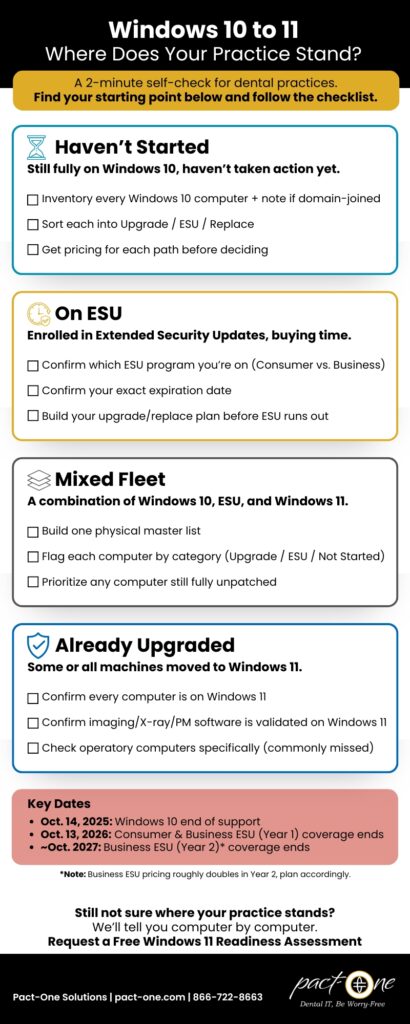
View/Save this Checklist
Quick Recap of the Retirement of Windows 10
Windows 10 reached its official end of support on October 14, 2025. That didn't turn any computers off, it just means Microsoft stopped issuing free, routine security patches for it. Extended Security Updates, or ESU, is the paid bridge program that keeps critical security patches coming a while longer, but it comes in two different flavors that aren't interchangeable:
- Consumer ESU: Built for personal Home-edition devices, runs out October 13, 2026.
- Business ESU: Applies to domain-joined or IT-managed machines (most practice computers, even in a single-location office), with license extensions over a 1-year or 2-year span.
That's the backdrop. Now, your path.
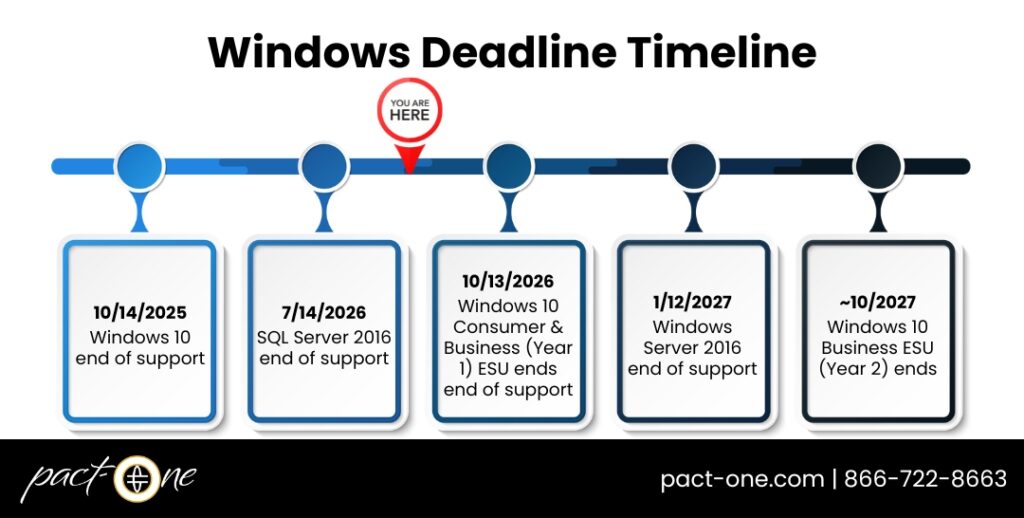
Windows 10 isn’t the only clock running. If your practice management software or imaging is stored on an on-premise server, Windows Server 2016 has its own end-of-support deadline – worth planning alongside this one rather than as a separate project later.
If You Haven't Started Yet
The most useful thing you can do this month is an inventory: every Windows 10 machine, what it's used for, and whether it's domain-joined. From there, each machine sorts into one of three lanes: (1) upgrade to Windows 11, (2) buy a short ESU bridge while you plan, or (3) replace it outright if the hardware can't support Windows 11 at all (a lot of otherwise-fine machines fall short on requirements like TPM 2.0). The sooner this starts, the more choice you have over timing and cost. Waiting until the fall means competing with every other practice trying to do the same thing at once. Or dealing with rising cost of hardware if a computer replacement is needed.
If You're on Windows 10 ESU
First, confirm which program you're enrolled in and when it expires. This is important because consumer and business ESU have different expiration dates, different eligibility rules, and neither one renews itself indefinitely. ESU was designed as a bridge, not a resting place, so the real question isn't "are we covered right now," it's "what are we doing with the extra time we bought." If you don’t have a plan yet, that's your starting point before the bridge runs out and you're back to square one, just later and more rushed.
If You're a Mixed Fleet (Most Practices)
This is the version that benefits most from an actual list rather than a mental tally. It's easy to be confident about the computers you think about often (usually front desk) and much less certain about the ones tucked in a back room or an operatory that's rarely the center of attention. A short inventory turns "it's a mix" into a specific, finite list of what's left to handle.
If You've Already Upgraded to Windows 11
Worth confirming a few things rather than assuming: did every relevant computer get upgraded, or just the visible ones… front desk and doctor, while an operatory computer or two got missed? Has your imaging, X-ray, and practice management software been specifically validated on Windows 11, not just installed and assumed to work? These gaps tend to surface at the worst possible moment and it’s something you want to stay ahead of before it costs your practice unnecessary downtime.
Your 3-Step Plan, Wherever You're Starting From
- Get a real inventory: Every machine, its status, and whether it's domain-joined.
- Sort what's left, computer by computer: Upgrade, ESU-bridge, or replace.
- Schedule upgrades or installations: Plan around your patients, staggering changes by role so nothing causes unnecessary downtime.
FAQs about Windows 10 to Windows 11
Here are some common questions related to updating from Windows 10 to Windows 11. Click the question to see the answer below.
Let's Find Out Exactly Where Your Practice Stands
You don't have to sort this out from memory, and you shouldn't have to guess which category you're in.
Ready for a clear answer? Request a free Windows 11 Readiness Assessment and we'll help you identify — computer by computer — what's already handled, what's on borrowed time, and what still needs a decision. And help you create a viable plan that gets you back on the right track.
Not ready for a full assessment yet? Download our one-page Windows 10 to 11 Status Checklist and get your own inventory started this week.
Related Articles
- The Risks of End-of-Life (EOL) Technology in Your Dental Practice
- The Importance of Software Updates for Dental Practices
- Upgrading Your Dental IT Infrastructure: Is It Time?
- Dental Practice Hardware Refresh Plan: When to Replace Computers, Server, and Network Hardware
- Guide to Replacing Tech in Your Dental Practice this Year
- The Most Overlooked Deadline in Your Office: Windows Server 2016 End of Life
Dental IT. Remove the Burden. Embrace the Use.
Quality patient care – it's ultimately why you became a dental professional. But, some business operations can get in the way (such as pesky computer issues or lack of IT support). That’s where Pact-One Solutions can help! Our passion lies in supplying reliable, responsive dental IT support and security that practices can count on.
Whether you’re looking for dental IT services for your startup or searching for more responsive dental IT support – our team of dental IT specialists have you covered. With team members throughout the United States, we offer nationwide support to dental practices of all sizes, specialties, and stages of growth. Our wide range of dental IT services ensure your data is secure, accessible, and protected.
Don't let technology challenges hinder your ability to deliver exceptional dental care. Contact us at info@pact-one.com or 866-722-8663 to join over 3,000 dental professionals thriving with the support of a dedicated dental IT team.


You must be logged in to post a comment.